Thoughts on Twitter

I’ve been on Twitter now for exactly a year yesterday and I want to write down some of the things I’ve learned up to now:

  1. Twitter allows people who are interested in what YOU have to say to simply follow you to keep current.
  2. Twitter search allows me to find people who are interested in the things that are important to ME.
  3. Twitter communication can be near real-time. You can carry a conversation with exchanges (tweets) in seconds or over a much longer time frame.
  4. Twitter, via the @ mentions, can allow anyone to communicate with anyone (although don’t expect a reply at times).
  5. Twitter can give you a near real-time pulse of what’s happening in the world (news) if you follow enough people.
  6. Twitter allows you to take in multiple interest feeds in one place, for me it’s fly fishing, native american issues, technology, storage, audio/video stuff, & what the Dominics of the world have to say.
  7. Twitter can lead to being more informed about your local community if you follow those local to you.
  8. Twitter can be very powerful when combined with a Blog.
  9. Twitter can bring new and insightful information to you that you normally would not have come across (again depending on who you follow & sifting for the nuggets).
  10. Twitter is only the base technology that enables information exploration with applications like TweetDeck.
  11. Twitter can be addicting, just keep in mind that it answers the question of what are people talking about NOW.
  12. Twitter can make the normally dull times interesting (allows communication vs listening to music on the bus).
  13. Twitter has people who truly want to help and those that want to sell you something.
  14. Twitter has software robots looking for keywords to send tweets to you (usually to sell you something).
  15. Twitter is a connection enabler.
  16. Each person has the potential to say something profound and enlighten me, twitter just let’s me tune into more people.

As I think of more or learn more from others, I’ll add to this list.

You can follow me on twitter, look for @dompruitt

– Dom
Conexant HD SmartAudio 221

Just a quick post on this to help out others who use only the sound card on their laptops for recording audio.

I discovered today with my new Lenovo W500 (Win XP based) and using Audacity & Camtasia Studio 7, that the sound recorded sounded less than ideal (seemed to be missing some audio due to a bad sampling setting).  The output files sounded equally as bad.

Now, I’m a fan of using a USB connected microphone or mixer (like the Centrance MicPort Pro & Alesis MiltiMix 8 USB) to avoid this type of problem.  It allows me to use my professional (XLR connected) microphones like the Shure PGX wireless mic and Shure Beta 58A.  But when I’m traveling on the road, I like keeping my setup simple, so I use the laptop and a Plantronics .Audio 470 USB Stereo Headset (sometimes with and without the USB connector).

I checked the drivers for the sound card using Device Manager, and what came with the laptop was the “Conexant High Definition SmartAudio 221” at version 3.53.0.0, this was the first release of this audio driver.  With any version 1.0 software, drivers included, there is a higher likeliness of software bugs or settings not set properly since there is little customer feedback before release.

The current version of the Conexant audio driver is on the Lenovo support website here.  At the time of this writing it was at version 3.64.10.51.

I updated to the current version and the bad sampling problem went away.  It also changed the device name to “Conexant 20561 SmartAudio HD”.

Hope this was useful for those using the microphone port on the laptop to record audio.

– Dom

Getting back into the groove

I’ve not blogged for quite a while, and these technologies have evolved & changed since I started.  I’ve decided to move my initial blogger blog to wordpress so I can learn more about it.  I like the fact that I can create posts using my iPhone, so maybe this will allow me to blog more as new ideas come to mind.  Enjoy!

– Dom

Fixing the scroll wheel on the Microsoft Arc Mouse

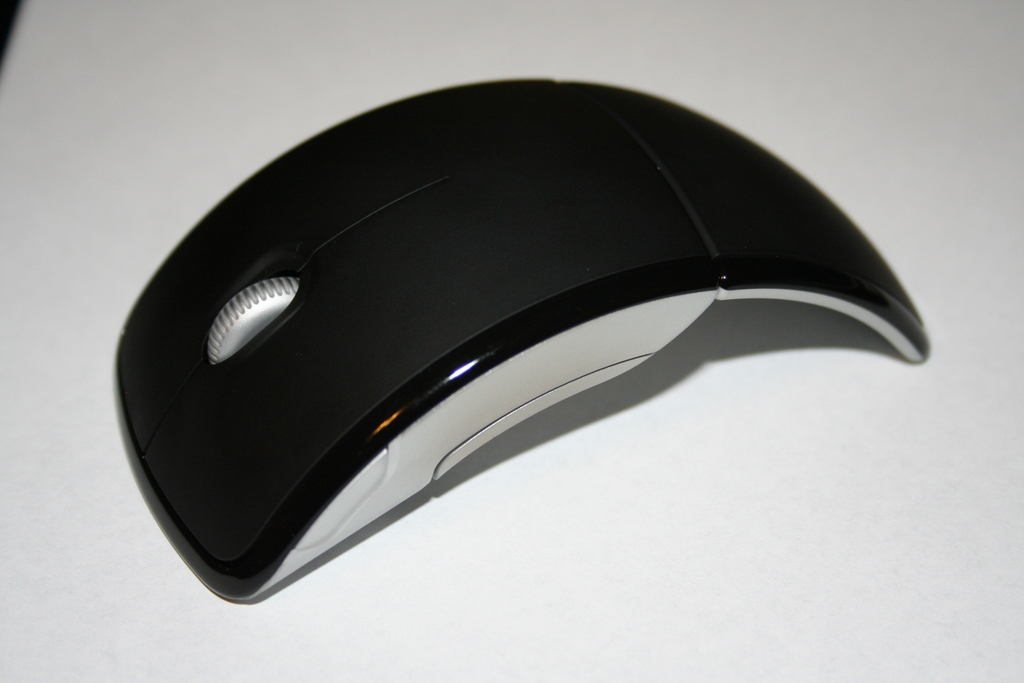
When I saw the Microsoft Arc Mouse in the retail store recently I just had to have it, the cool factor was high in my opinion. So I paid some $60 plus tax and took it home to play with.

After about one month of use the scroll wheel was intermittently working (it would click some of the time), then it stopped working (clicking) altogether in about 2 months.

When the wheel stopped working, I searched around the Internet and noticed many more people where having this exact same problem. Some had the mouse wheel stop within a couple weeks, and others in several days.

What follows is an account of how I fixed my mouse. I believe that this wheel problem is DESIGN related and here is what I did to fix it (for now).

*** START DISCLAIMER ***

If you are NOT TECHNICALLY INCLINED (or have the right tools) to fix your mouse please use the correct support procedures outlined by your retailer or Microsoft to get one that works or your money back for a different mouse. Following this procedure to fix your mouse will likely VOID the warranty!

*** END DISCLAIMER ***

Ok, now on with what I did … I could not take the mouse back to the retailer due to length of return time and I did not want to deal with MS support (more effort & energy than it’s worth) to get a replacement that will just break again.

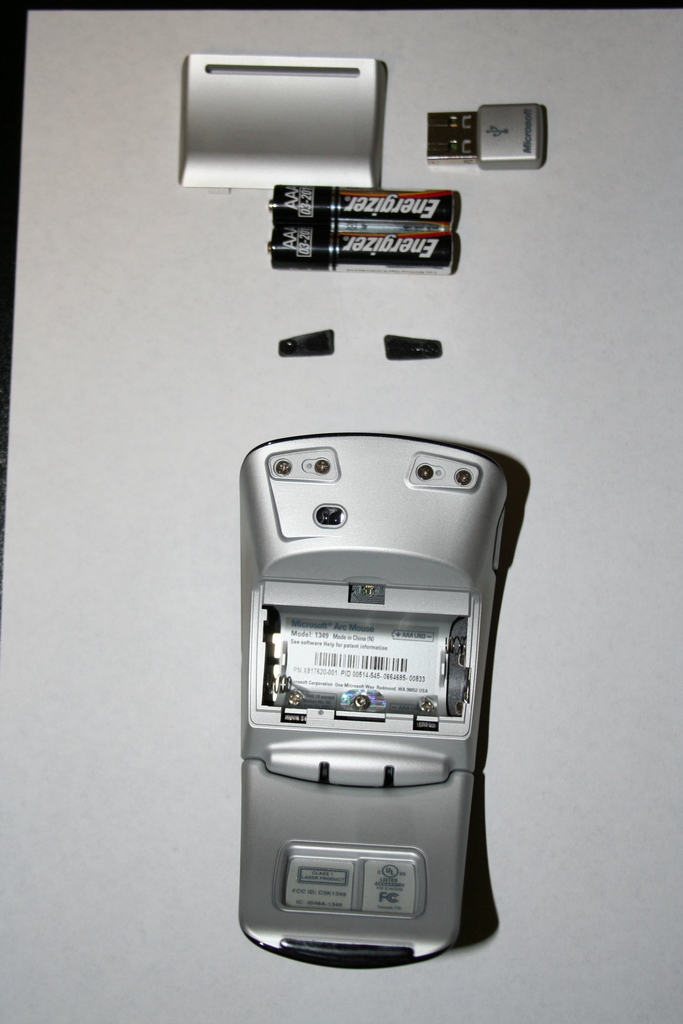
Remove the skid pads on the front part of the mouse, they are held there with a bit of adhesive (like tape), I used a small screwdriver to pull up the edge of the skid pad then just pulled them off.  You can also use a small knife or hobby blade (think x-acto knife).  Keep them clean so you can reapply them later.  (Special thanks to sahil & Chuong for suggesting this part)

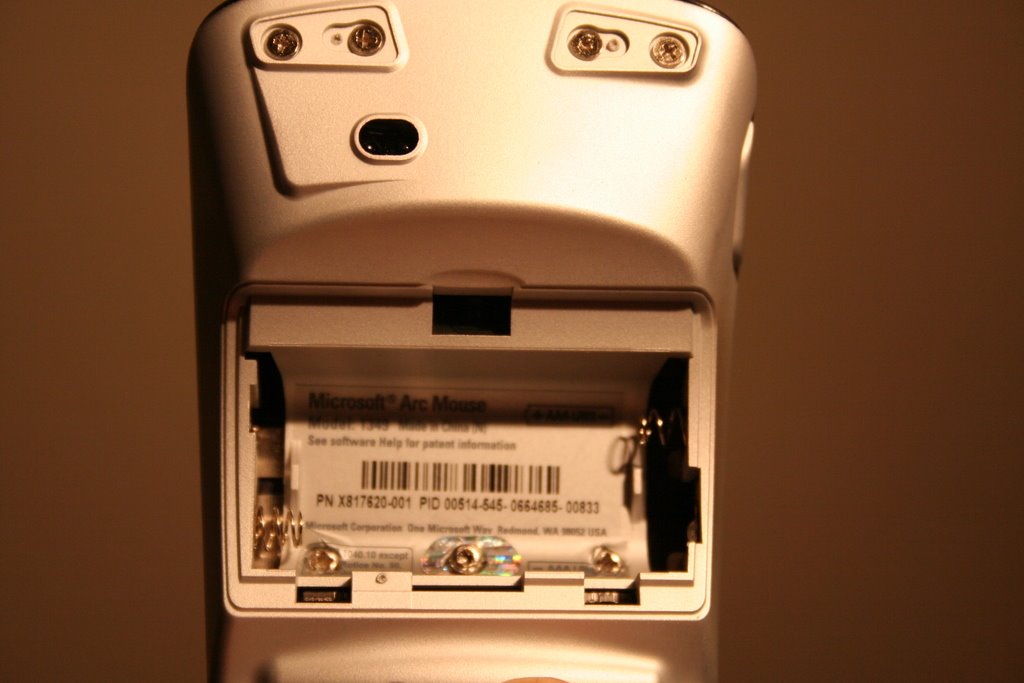
Once you remove the battery cover and batteries, there will be 3 screws under the label as shown in the pictures below. In addition, there are 4 screws under the black skid pads in the front part of the mouse.

The trick is removing the 3 screws under the label … the 2 side screws are of phillips type and the middle screw is different and requires a hex screwdriver. Not sure why MS decided to do this, but it makes taking apart the mouse harder since you need another tool.

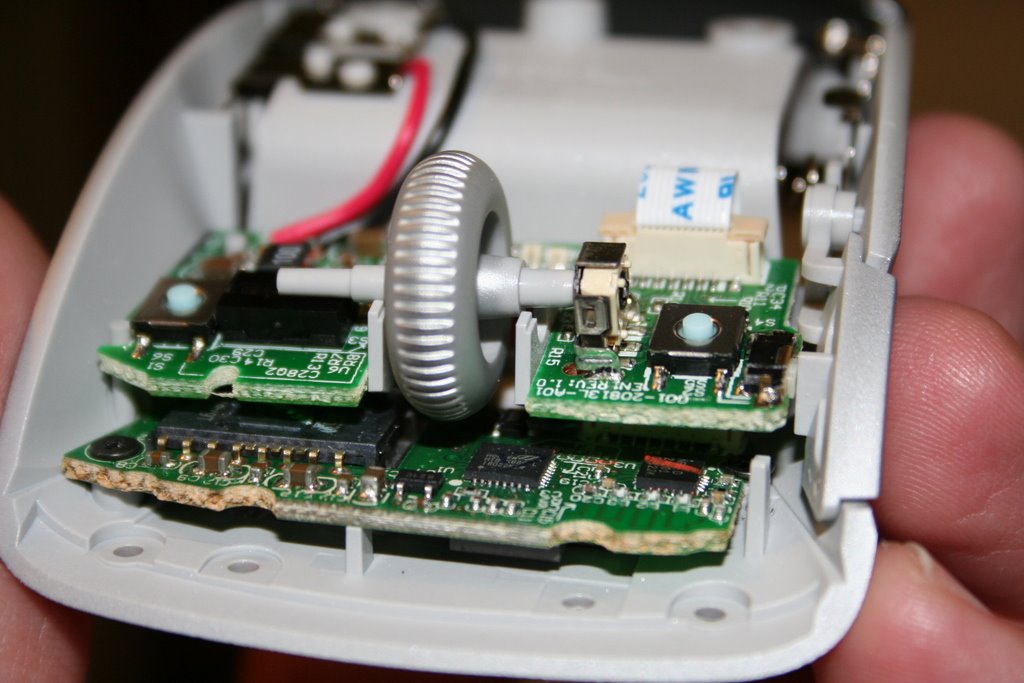
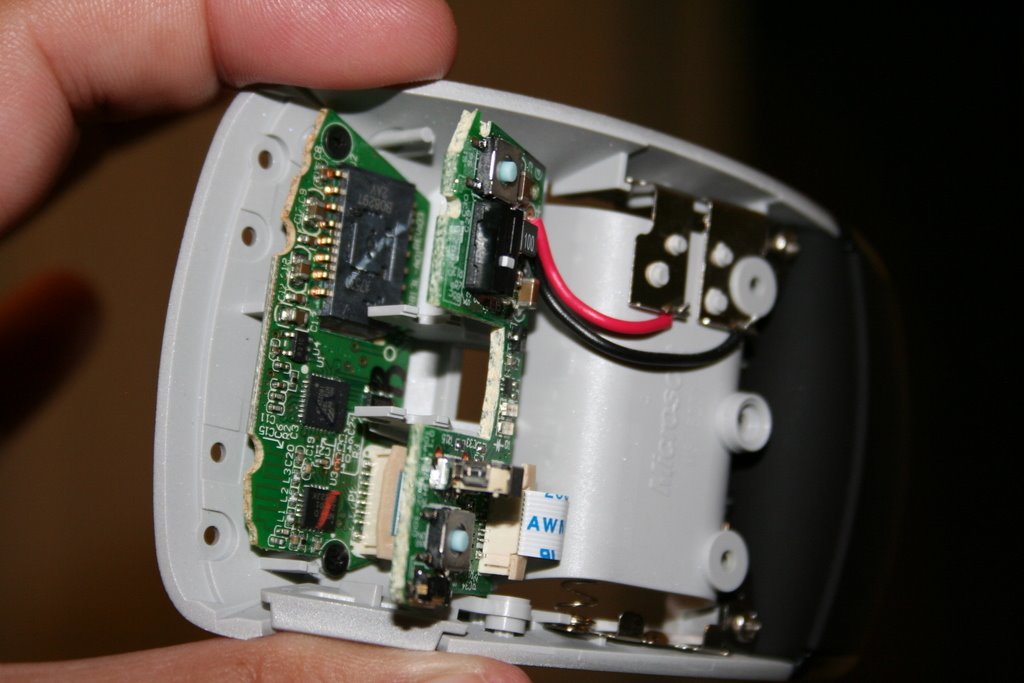
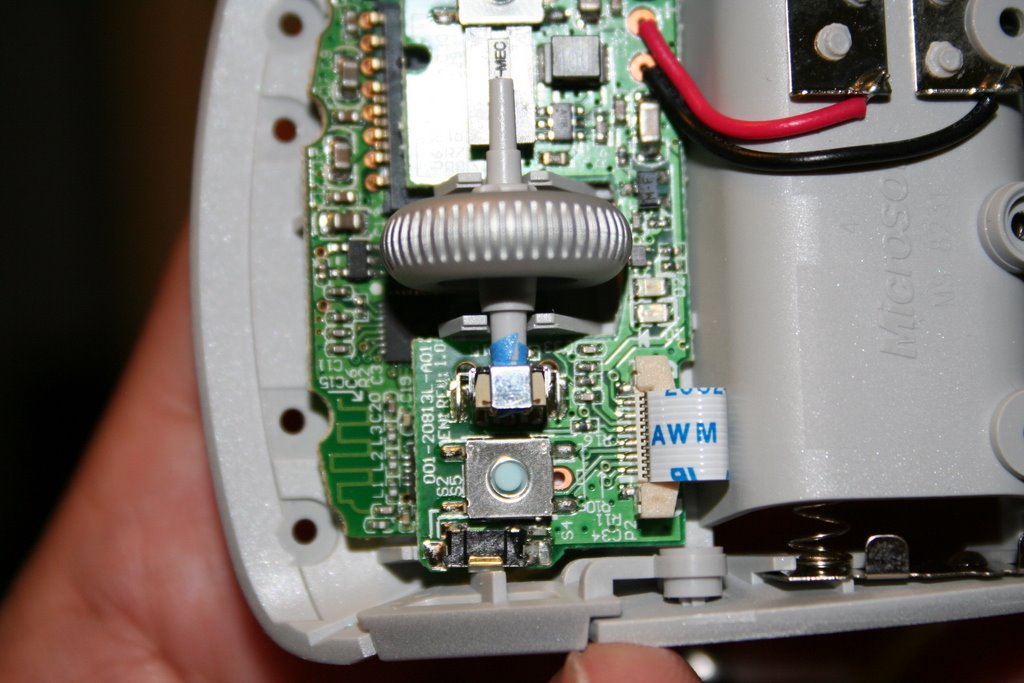
After all screws are removed, the top cover will come off and you will see this:

The upper board just floats and is held down by the cover and wheel, to remove the wheel, just lift the upper board.

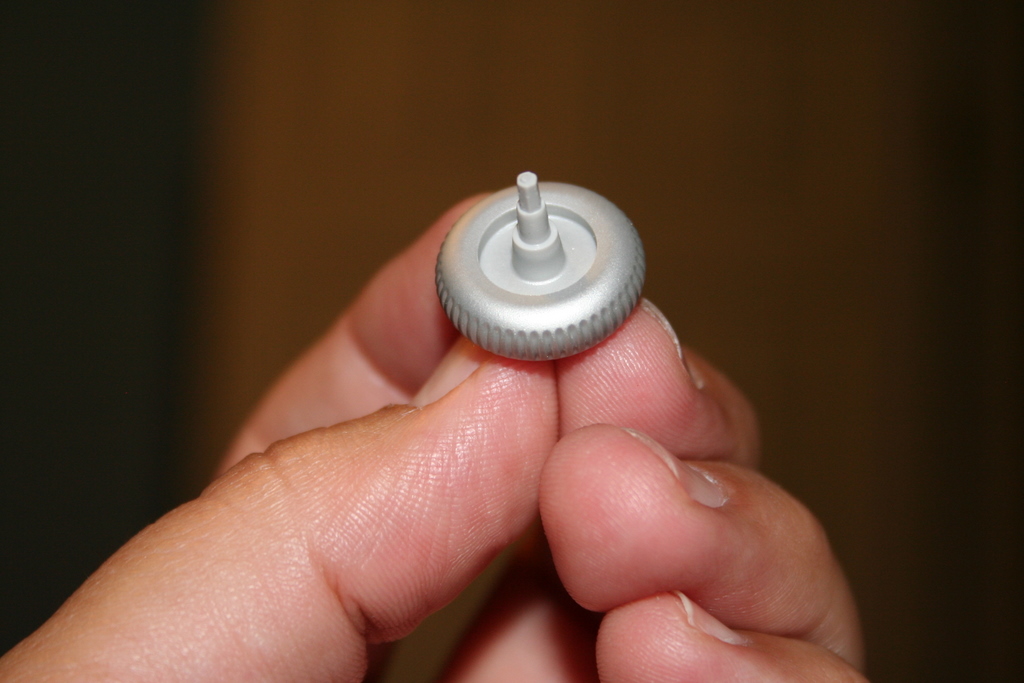
In my opinion, the problem with the mouse wheel lies in the material it is made of and the length of the hex shaped part of the shaft that fits into the mechanism that detects the wheel movement. My mouse wheel shaft was a little bit worn, but it was worn just enough and short enough to free spin and not turn the wheel mechanism.

I guess MS did not test the fact that people would be putting different pressures at different angles on this scroll wheel, hence the different failure rates with different people.

So what did I do to fix the problem?

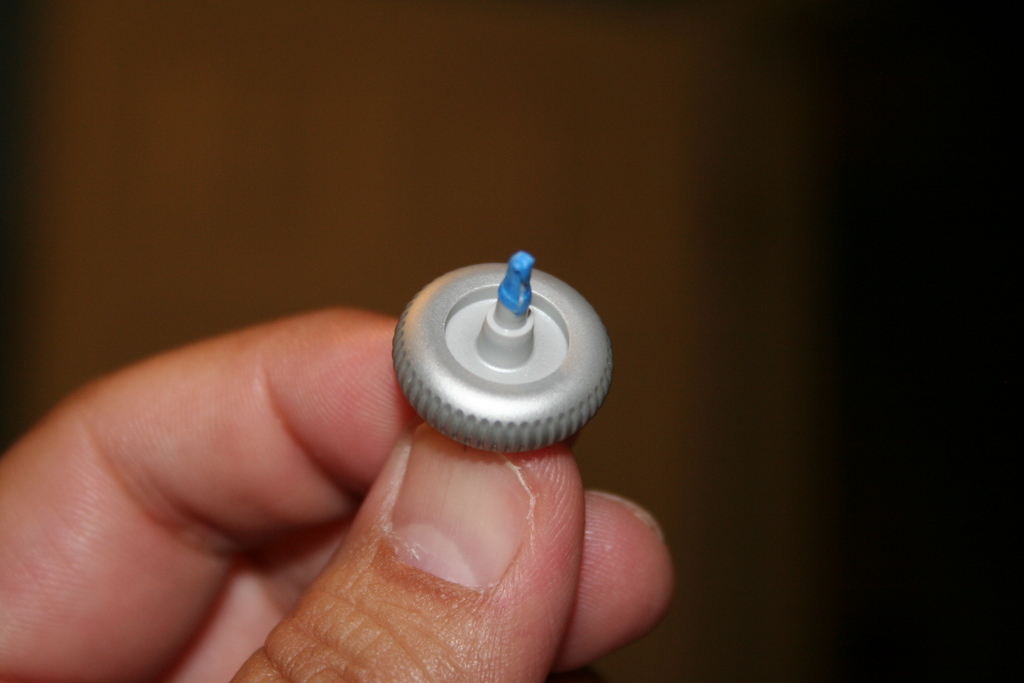
I used some blue painter’s tape to provide a tighter fit and lengthen the end just slightly. This is a good enough fix to allow me to get more mileage out of the mouse and, as a side benefit, it gets rid of the loud plastic clicking sound the mouse made before.

To finish up … make sure the wheel spins freely, put the cover back on, put all the phillips screws back (not the hex one), replace the skid pads, add the batteries, and put the battery cover back on.

I hope this helps a lot of folks out there decide what to do with these cool yet dysfunctional mice!

Take care & be safe.

– Dom

*****

Additional Information on this post:

Matt wrote to me recently to tell me “I used superglue instead of tape, spin the tip around the part you taped and then once you have a thin but even coating around breathe (like a hot slow breath, not like blowing out candles) to help the glue set (super glue sets with water, the moisture in your breath will help speed things up). After a minute it should be dry and then just put the scroll wheel back in and its as good as new :)”. Thanks Matt.