Audio & Video gear I use

Since I’ve had several questions recently about what Audio & Video gear I use, I’ve decided to create a separate page here on this blog to detail what I own & what I have used.  Feel free to contact me about any of the items listed, maybe I can save you some time/energy in your various content capturing/creation efforts.

In addition, I would like to point you to an awesome resource I found during 2009 PodCampAZ for learning more about the technical aspects of video.  His name is Israel Hymen, he runs Izzy Video, and I’m a member.

Enjoy!

– Dom

Mobile podcasting hardware for less than $39.99

The SanDisk Sansa Clip Plus MP3 player has been very useful to me for capturing mobile audio and I’ve decided to write about it so others know about this useful little device.

I use the voice recording function of this MP3 player to capture presentation audio by placing (actually cliping) the device on the shirt of the person doing the presenting. By doing this I get the built in (omnidirectional) microphone very close to the audio source (person’s mouth) which greatly improves audio quality. This is the same microphone placement that makes professional wireless lapel microphones sound so good. The microphone is on the clip side of the device at the top, and since there are no wires the person is free to move around while talking. This device does employ a Automatic Gain Control (AGC) function, so it’s helpful if the presenter simply says something like 1 … 2 … 3 before really starting into their content. The AGC function is also helpful in capturing distant questions in the room.

All the audio is recorded to solid state storage inside the device (there are 2GB, 4GB, and 8GB models), the battery is self-contained (not removable) and can run up to 15 hours in playback mode. Record mode would be a bit less since the device is actively writing to storage, I have easily recorded up to 3 hours of audio at one time (I’m really curious to know how long it would record). Recorded audio consumes almost 3MB per 1 minute of audio, this means an hour of recording would take up about 180MB of space on the device, so even the 2GB model has plenty of space to do hours of recordings.

The Sansa Clip Plus records audio in WAV format (tech details are: 24kHz, 16bit, Mono = 384kbps, good enough for speech, not really good for music). I really like this particular file format because it allows for post-processing/editing. Recording devices that record directly to MP3 do not easily allow for this option without further loss of audio quality.

Here are the post processing steps I go through to get the best possible audio from this device.

1. I pull the files off the Sansa Clip Plus using the USB cable provided and copy the files to my computer (it just looks like another drive).

2. I use the Levelator software to enhance the WAV file before editing the audio (this software is free from the Conversations Network). The Levelator performs audio re-leveling on the entire file at a detail that is too manually intensive to do yourself. Here are some waveform examples captured from Audacity. If you want more detail on how this is done, please checkout the Levelator website.

This audio waveform is before running the WAV file through the Levelator:

This is the audio waveform after running the WAV file through the Levelator:

As you can see, some of the louder parts are reduced, and softer parts are enhanced. This is the magic of what the Levelator can do for your audio recordings.

3. I use the audio editing software Audacity (also free) to remove any unwanted audio parts (just highlight and delete). Once I have the audio in final form, I can then produce a MP3 file (there are steps to set this up on the Audacity website). I typically produce the MP3 file at 64kbps to keep file size down and still maintain a good quality sound.

Here are some samples of audio I recorded in the house (not the best since walls reflect sound).

Sample audio before using the Levelator at 64kbps (24 seconds):

Sample audio after using the Levelator at 64kbps (24 seconds):

Now I know the difference is subtle in these examples, and you might pickup the difference more if you use headphones. But the really nice thing about the Levelator software is the ability to amplify audio from sources that are distant to the microphone. If you want another example of this take a listen to the audio from my post “Engineering talk at SIPI”.

The title of this post is “Mobile podcasting hardware for less than $39.99” which means you can likely find the 2GB version of the device through a online retailer for less than the suggested retail price.

I hope this information was useful, I really like the SanDisk Sansa Clip Plus for mobile audio capturing and recording speeches/presentations. Just remember to re-charge the device before any long event recording.

Enjoy!

– Dom

Eagle Creek Tarmac ES 22

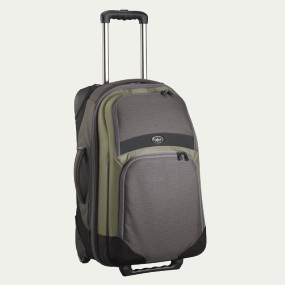
I’ve owned the Eagle Creek Tarmac ES 22 luggage for over a couple years now. It’s a great bag, fits well in all overhead storage on planes, and it’s light.

I wanted to make people aware of one issue I had with the bag, which I fixed. The allen screws on the handle tend to come loose with use over time. Since I did not want the handle coming off while traveling I kept screwing in the screws with whatever tool I had, a key, a stick, you get the idea.

I solved the loose screw problem at home one day by putting some Loc-tite on the screws so they don’t move. You can get Loc-tite at a local hardware store. One dab of this product on the threads does the trick, then securely tighten down the screw using a allen wrench.

Hope this is helpful to those folks who have the same bag.

– Dom

P.S. This post was created using the iPhone WordPress app while on a train to the airport, pretty slick.

*****

Update, 11/12, 2010, I have a new post on Uneven Wheel Wear on the Tarmac 22.

Bodelin ProPrompter Wing & ProPrompter iPhone App Review

I create corporate technical education in my daytime job (screencasts and podcasts) and recently started getting into videocasts.

One of the things I struggled with was reading from a script for the audio podcasts and now that I’m doing video, it was even harder to scroll through a document while being on camera. This sent me searching for some of the the teleprompter solutions out there.

Through reading several video related blogs, I ended up coming across products from Bodelin Technologies. They made teleprompters, but for more higher end video production. Recently they created a lower end product for some of the video bloggers out there. The product they created was the ProPrompter Wing and a ProPrompter iPhone/iTouch App.

http://www.bodelin.com/proprompter/product_wing_mobile
http://apps.bodelin.com/

I recently purchased the products. The ProPrompter Wing was $129 with another $9.06 shipping fee for a total cost of $138.06. This pricing was not the $99 advertised in the many product reviews I read about. The ProPrompter iPhone/iTouch App was $9.99 ($10.80 with tax) from the iTunes store, again most product reviews said this was going to be free, but being in the software business, I understand there are costs involved even if delivery of goods is electronic.

Here are my thoughts on the hardware and software.

ProPrompter Wing hardware
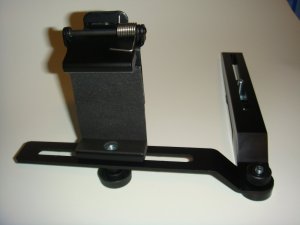
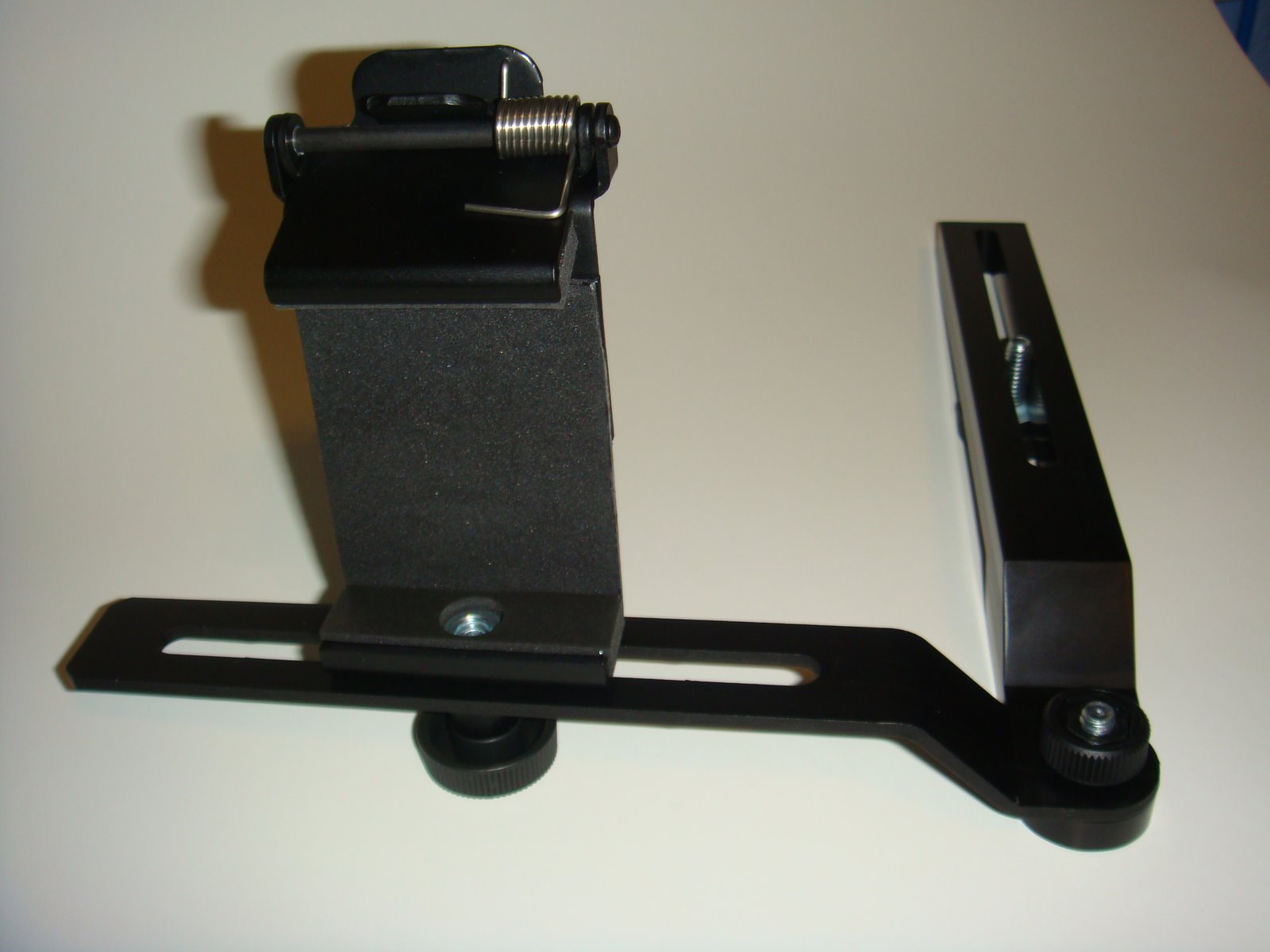
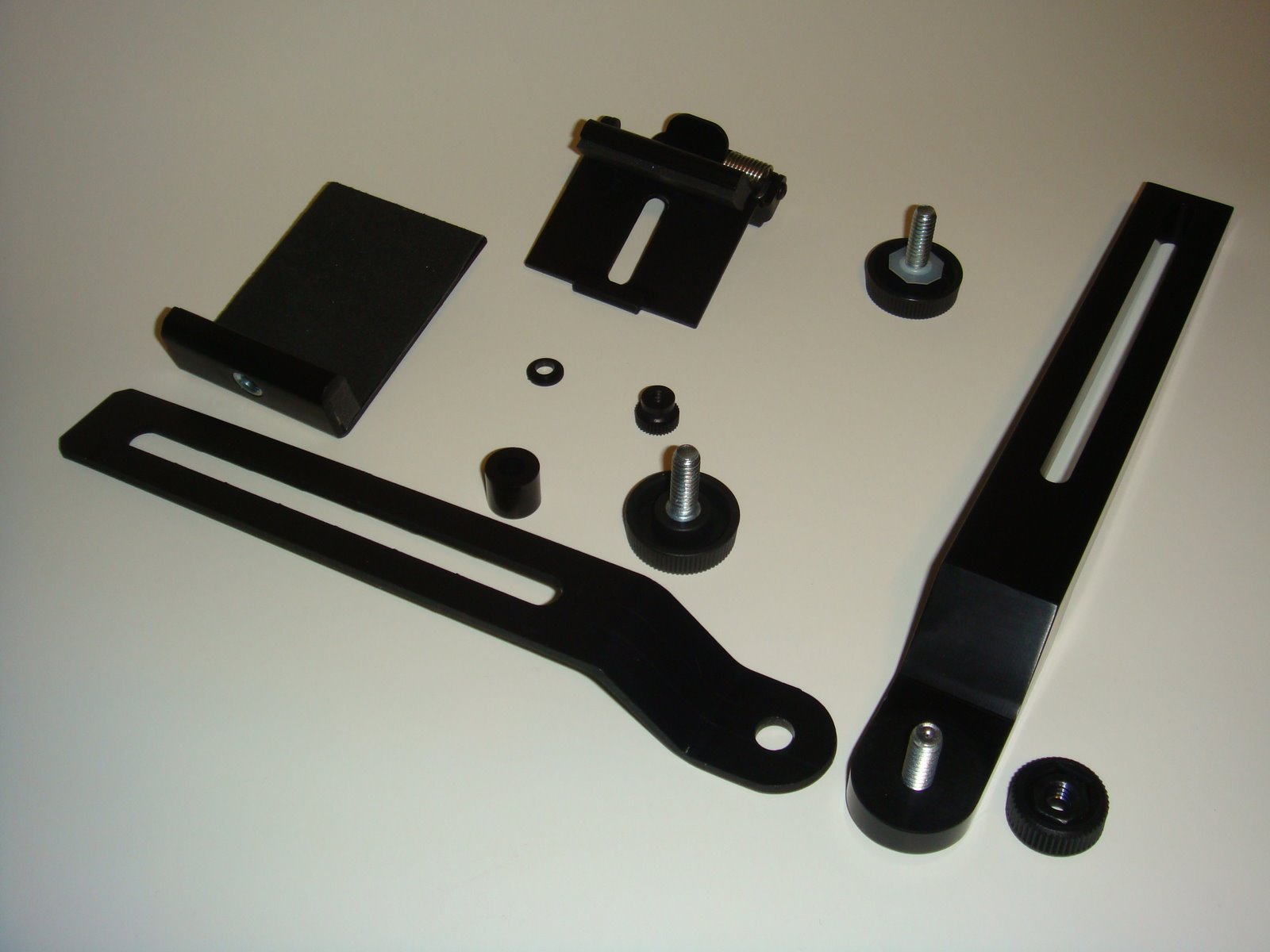
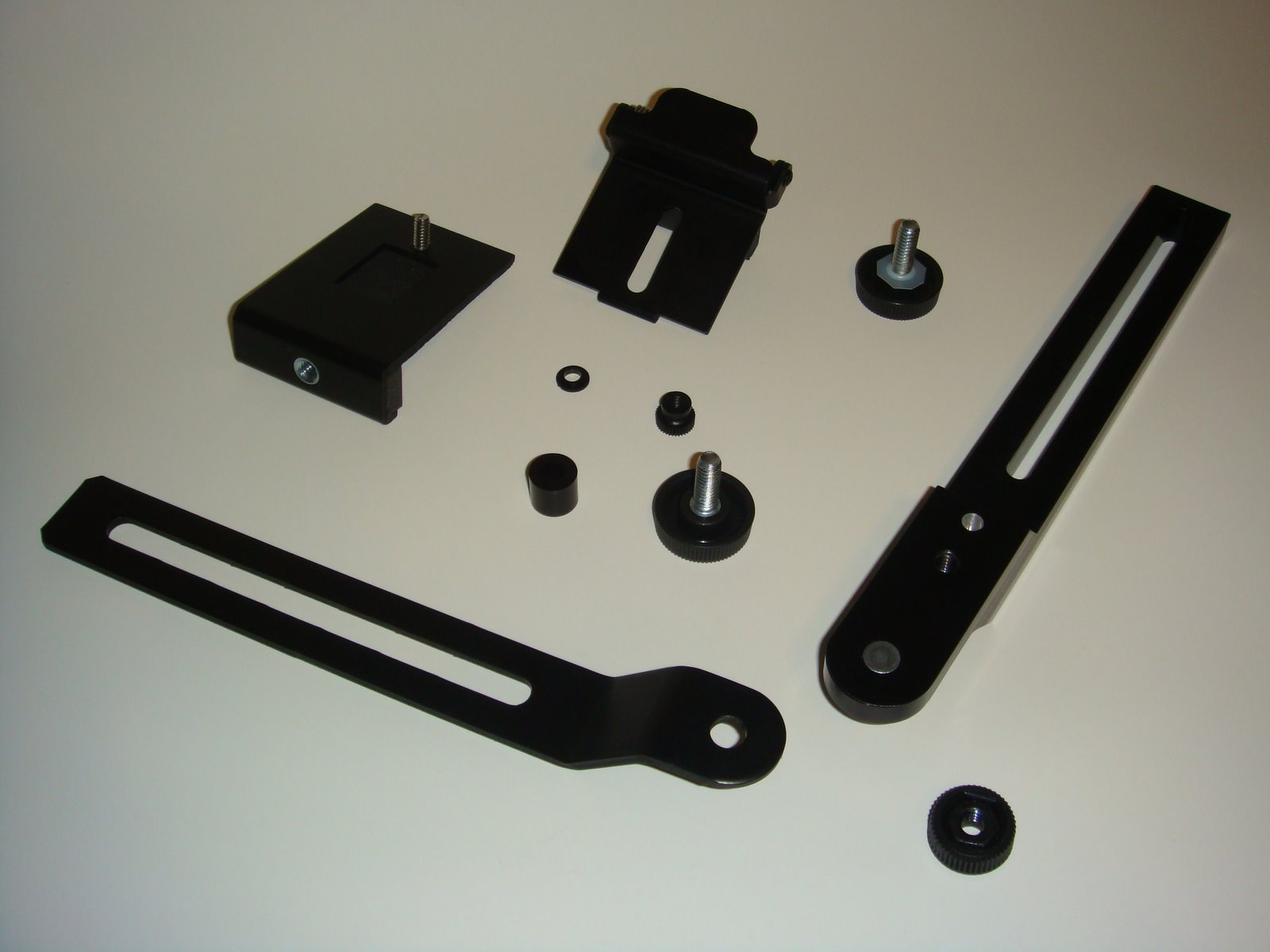
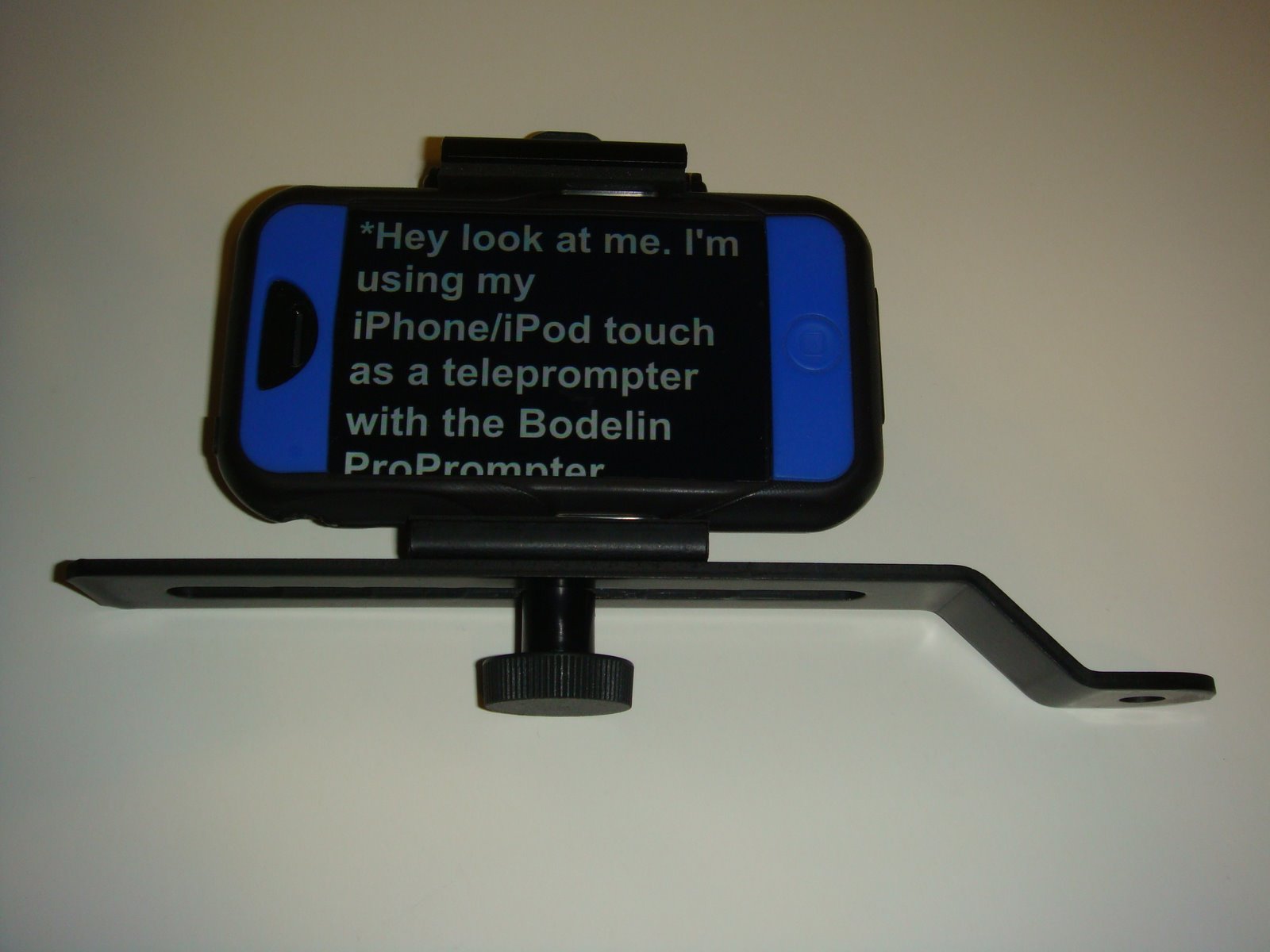
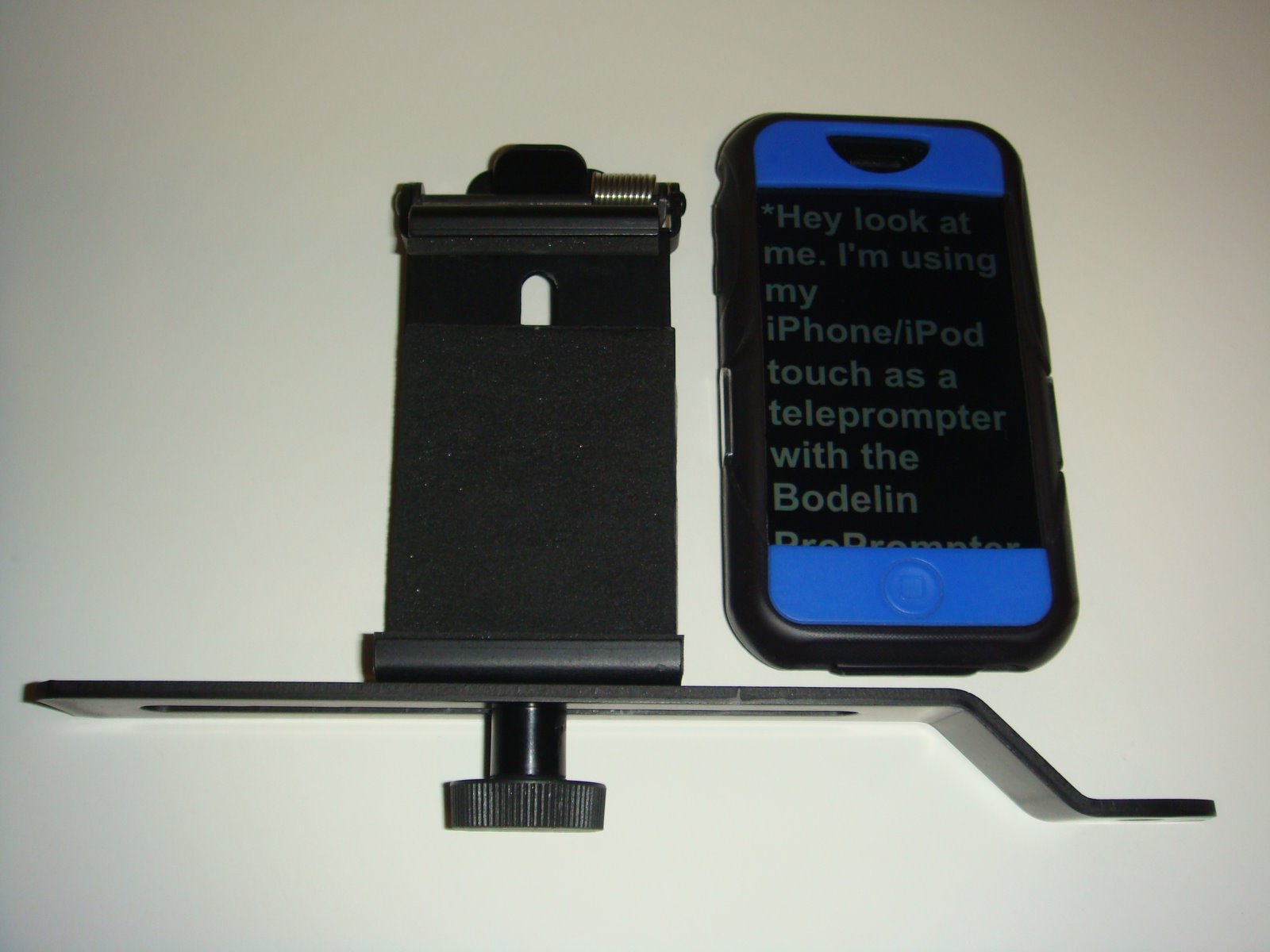
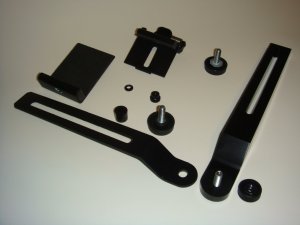
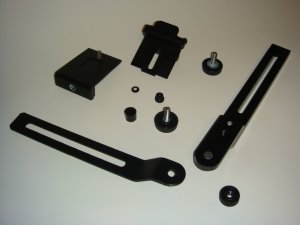
Here is a picture of the assembled ProPrompter Wing. The camera mount part is made from bar stock aluminum and it machined nicely with no rough edges at all, in fact if you strike the middle with your fingernail it will sound like a tuning fork. One of the things I noticed when I screwed the camera mount to the camera is the metal part of the thumbscrew marred the under surface of the camera mount. To fix this I created a small washer out of a plastic milk jug, you can see it on one of the thumbscrews below.

The mobile device clip base is made from stamped aluminum which is then bent to the shape you see. It would have been nice if Bodelin had put the same effort for this mobile device clip base as they did for the the camera mount, there are obvious stamp marks and rough edges, a big contrast in part quality. If you look at the larger version of the pictures notice the inner cutout has several points along the length and is not smooth.
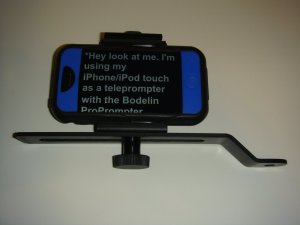
This is what the mobile devide clip looks like with my iPhone.
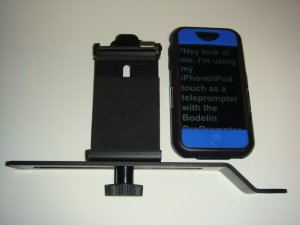
The ProPrompter App for the iPhone has a function to put the teleprompter in portrait mode, but unfortunately the mobile device clip, when fully extended, is not long enough to hold the iPhone in portrait mode (even without my iPhone rubber case). Maybe this is a design oversight on Bodelin’s part, who knows, maybe they will fix this in the future. The net here is that I cannot use the iPhone/iTouch software app in portait mode with the ProPrompter Wing.
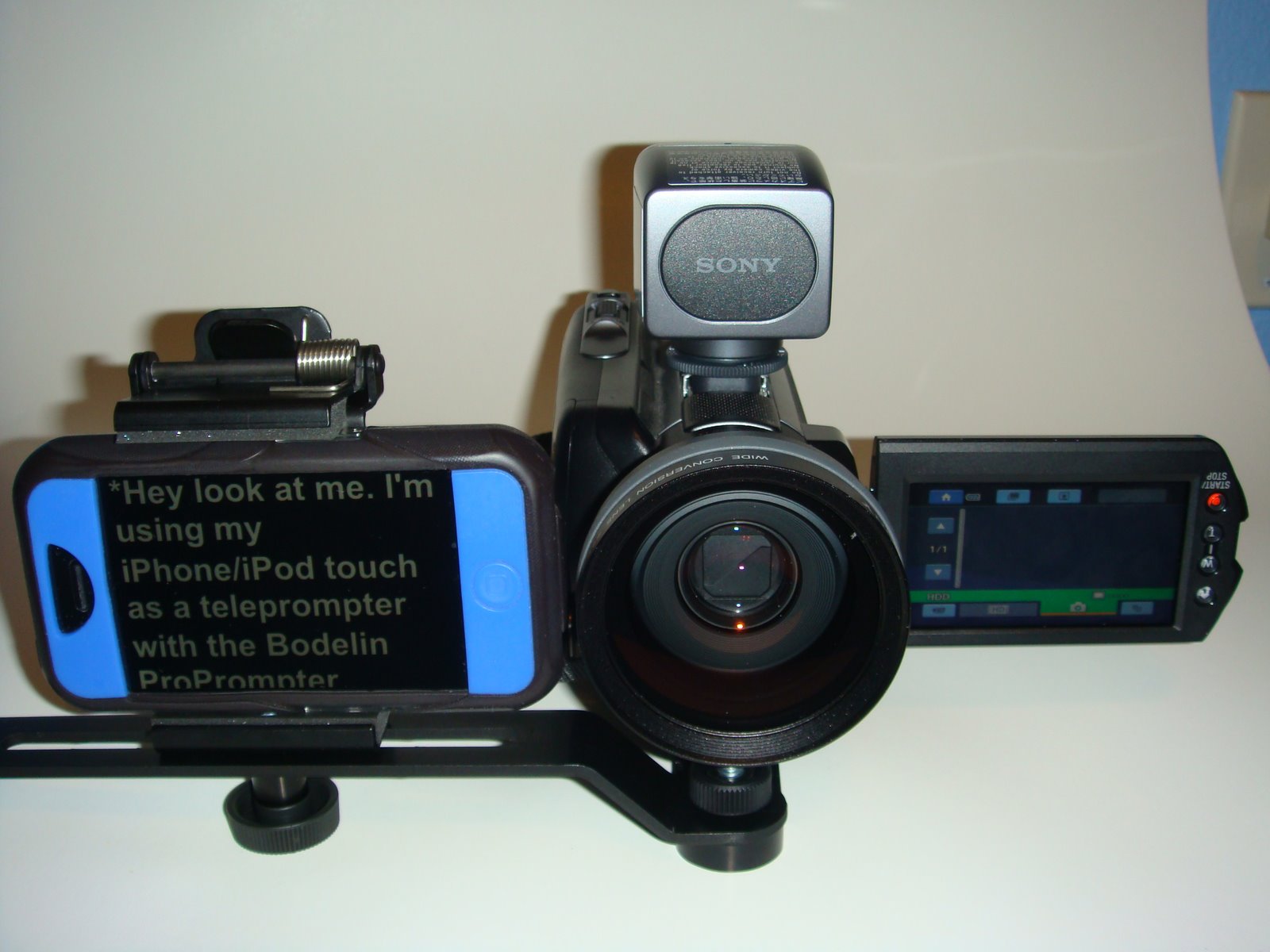
Here is my setup.
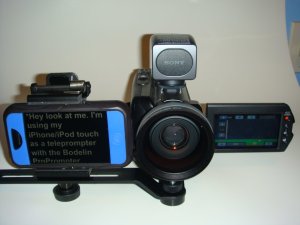
One tip on recording video, since the teleprompter is next to the camera lens there is the chance that people will notice you not looking at them (the camera lens) while reading the script. In order to avoid this, move back away from the camera, maybe 8 to 10 feet. If you are not using a wireless mic or lapel mic, the audio may suffer. Using a wide angle lens will help with this, you can see the one I use on the camera above, as well as, my bluetooth wireless microphone also.

ProPrompter iPhone/iTouch App software

This software is easy to use on my iPhone, fairly straightforward, my biggest concern is how Bodelin designed the loading of teleprompter scripts into the app.

I cannot type my script into the app on the iPhone/iTouch directly.

I cannot take a text script file, add it to iTunes on my computer and sync it to load it in to the app.

I MUST use the Bodelin website EVERY TIME I want to load any text/script into the app. If I want to change my script, I need to do the upload/activate/download teleprompter dance with the Bodelin website.

Yes, even if I am in the field, I must have internet connectivity to load a script in the app!

So, without constant internet connectivity this software is unusable. With the iPhone this works most of the time since there is a data plan providing basic internet connectivity (unless you are in a area with no cell phone service at all, for me, there are some places I travel where this is the case). With the iTouch, it depends on your connectivity to a wi-fi network.

If the Bodelin website went down or is under maintenance, I cannot update my teleprompter scripts.

If this software does sell well, I sure hope Bodelin invested in webserver redundancy/loadleveling, backup, and scalability to ensure I can use this product when I need to (this means 24x7x365). Because if they did not, I will be stuck and unhappy, so will others. I’m sure there will be other teleprompter apps in the future to choose from (that don’t depend on a website to load scripts), that’s just how competition works.

From a corporate perspective I would be concerned about uploading scripts to the Bodelin website which may contain sensitive or even confidential corporate information. Because once I upload the text, I loose control over the information.

I hope you enjoyed this review.

Overall I like this product, it is functional, solid, and has practical use for me today and the future. Someday I hope to update to the ProPrompter ProMag for Mobile Devices (or something like it) to get the direct in front of lens teleprompting.

Take care & be safe.

– Dom

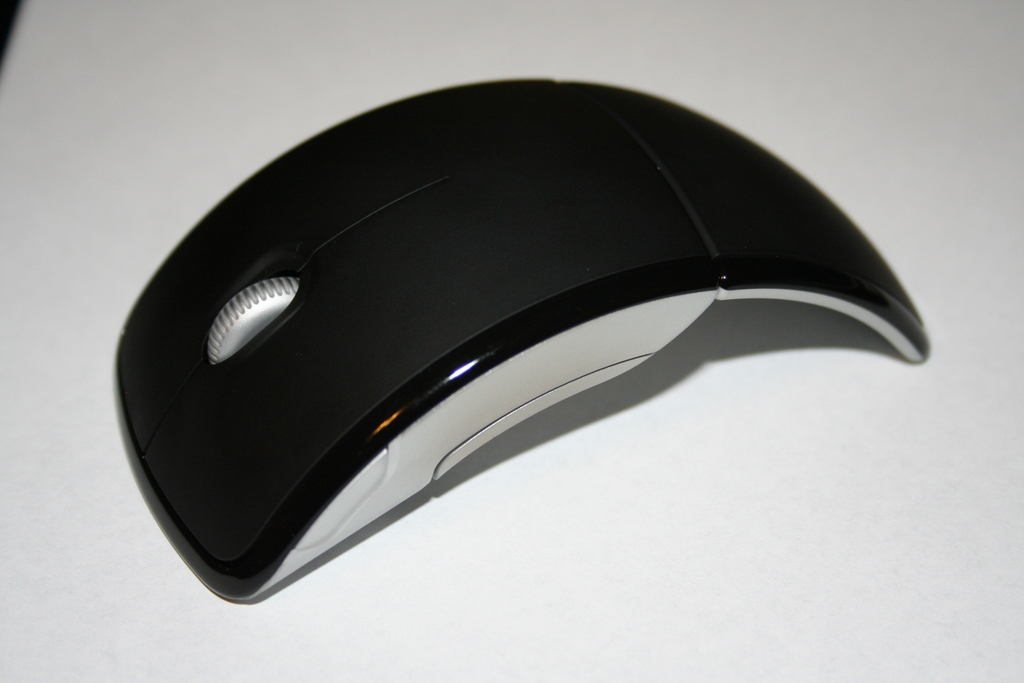
Fixing the scroll wheel on the Microsoft Arc Mouse

When I saw the Microsoft Arc Mouse in the retail store recently I just had to have it, the cool factor was high in my opinion. So I paid some $60 plus tax and took it home to play with.

After about one month of use the scroll wheel was intermittently working (it would click some of the time), then it stopped working (clicking) altogether in about 2 months.

When the wheel stopped working, I searched around the Internet and noticed many more people where having this exact same problem. Some had the mouse wheel stop within a couple weeks, and others in several days.

What follows is an account of how I fixed my mouse. I believe that this wheel problem is DESIGN related and here is what I did to fix it (for now).

*** START DISCLAIMER ***

If you are NOT TECHNICALLY INCLINED (or have the right tools) to fix your mouse please use the correct support procedures outlined by your retailer or Microsoft to get one that works or your money back for a different mouse. Following this procedure to fix your mouse will likely VOID the warranty!

*** END DISCLAIMER ***

Ok, now on with what I did … I could not take the mouse back to the retailer due to length of return time and I did not want to deal with MS support (more effort & energy than it’s worth) to get a replacement that will just break again.

Remove the skid pads on the front part of the mouse, they are held there with a bit of adhesive (like tape), I used a small screwdriver to pull up the edge of the skid pad then just pulled them off.  You can also use a small knife or hobby blade (think x-acto knife).  Keep them clean so you can reapply them later.  (Special thanks to sahil & Chuong for suggesting this part)

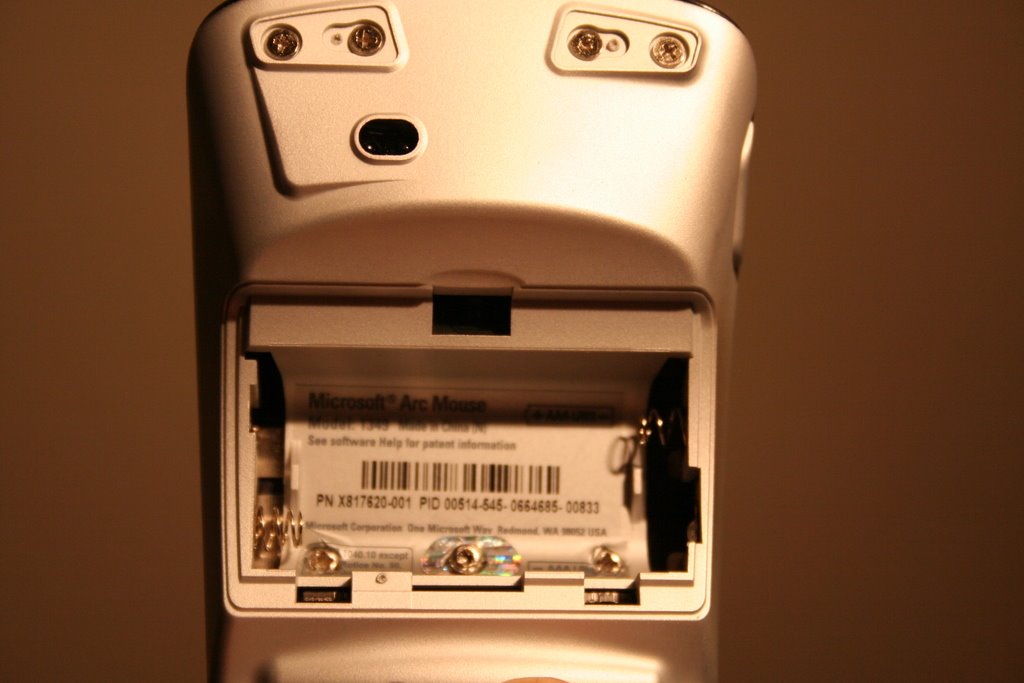
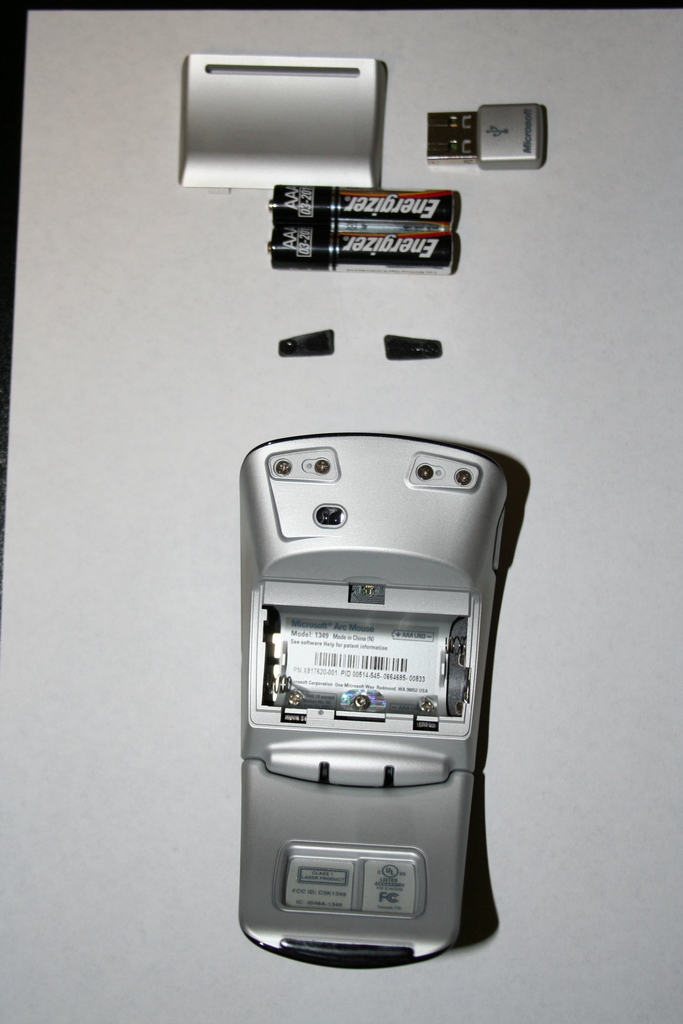
Once you remove the battery cover and batteries, there will be 3 screws under the label as shown in the pictures below. In addition, there are 4 screws under the black skid pads in the front part of the mouse.

The trick is removing the 3 screws under the label … the 2 side screws are of phillips type and the middle screw is different and requires a hex screwdriver. Not sure why MS decided to do this, but it makes taking apart the mouse harder since you need another tool.

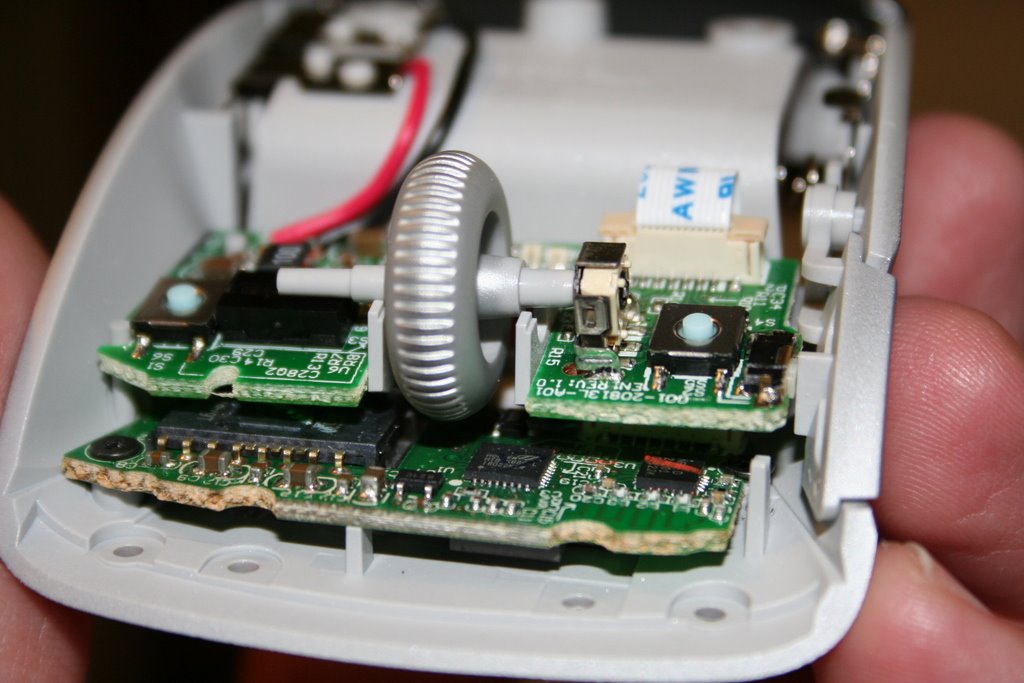
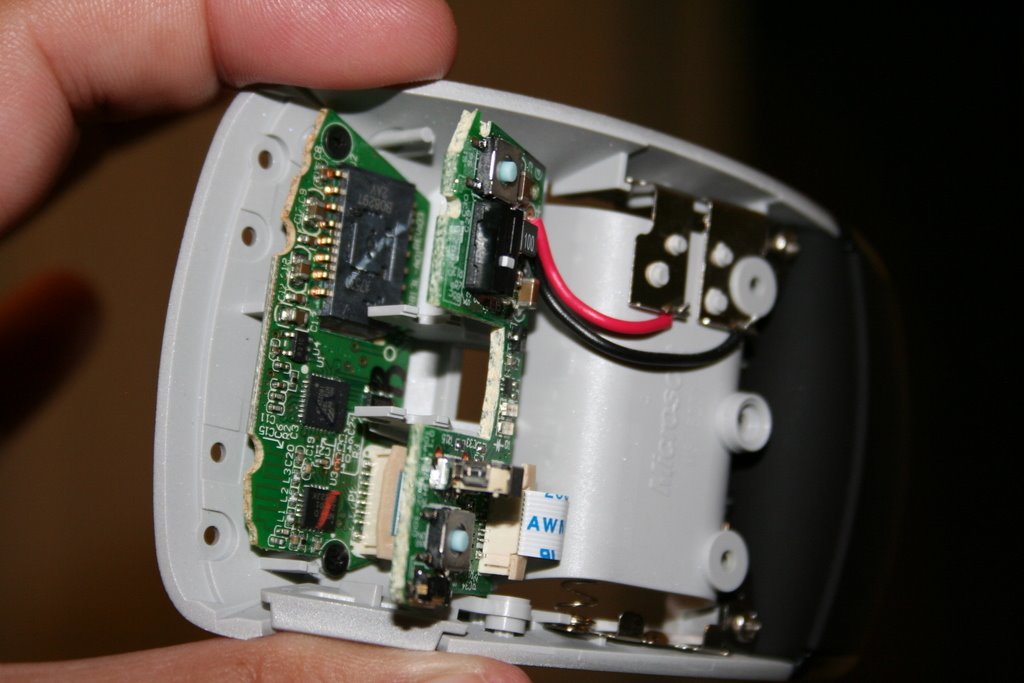
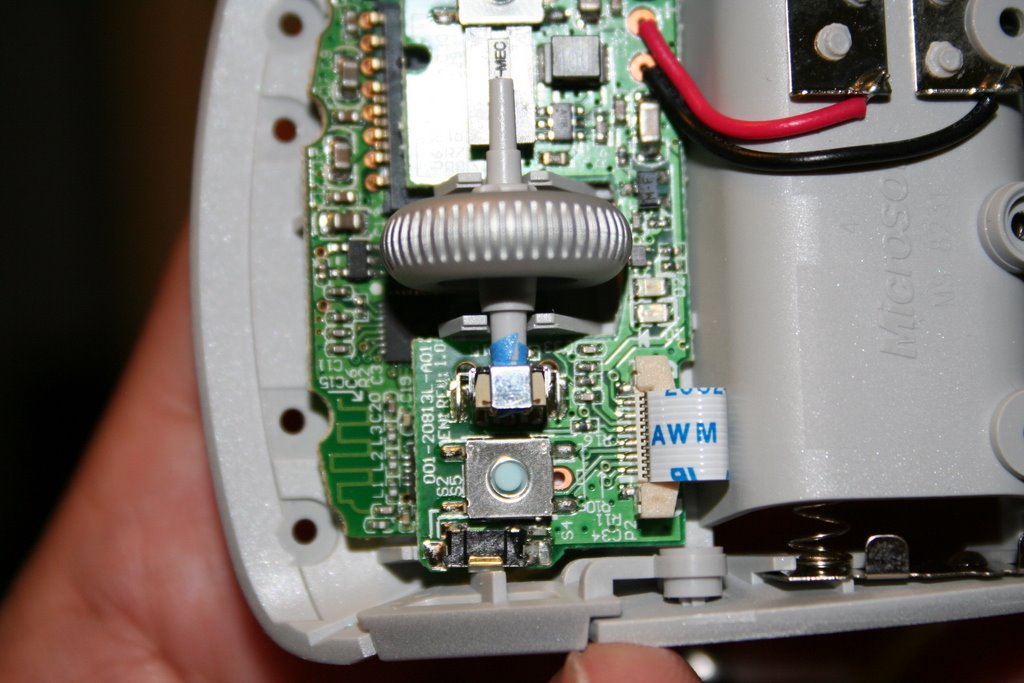
After all screws are removed, the top cover will come off and you will see this:

The upper board just floats and is held down by the cover and wheel, to remove the wheel, just lift the upper board.

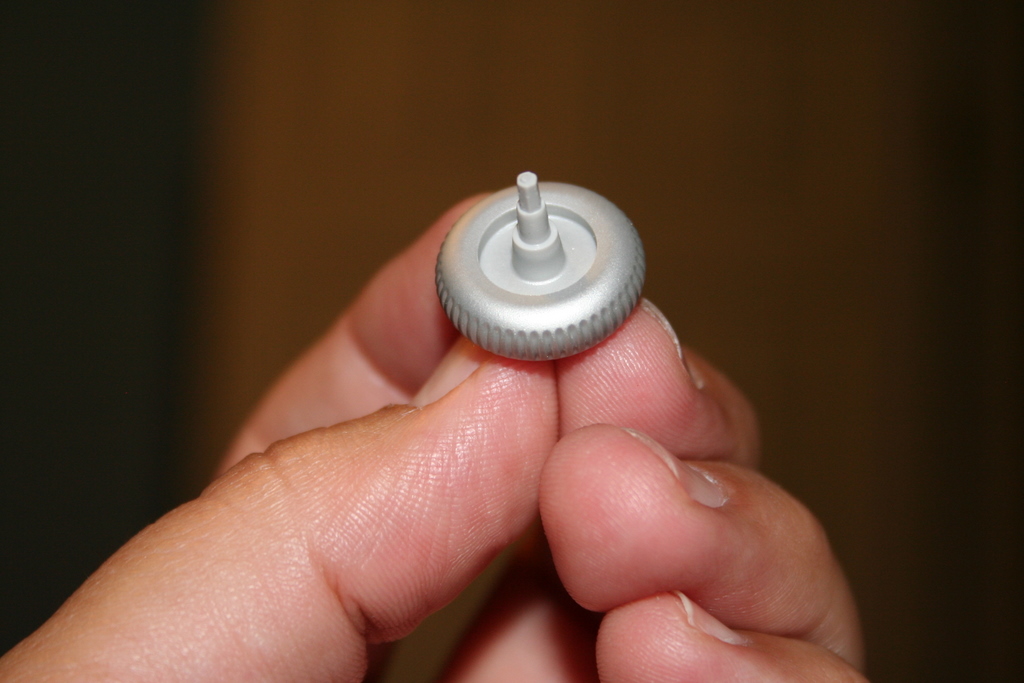
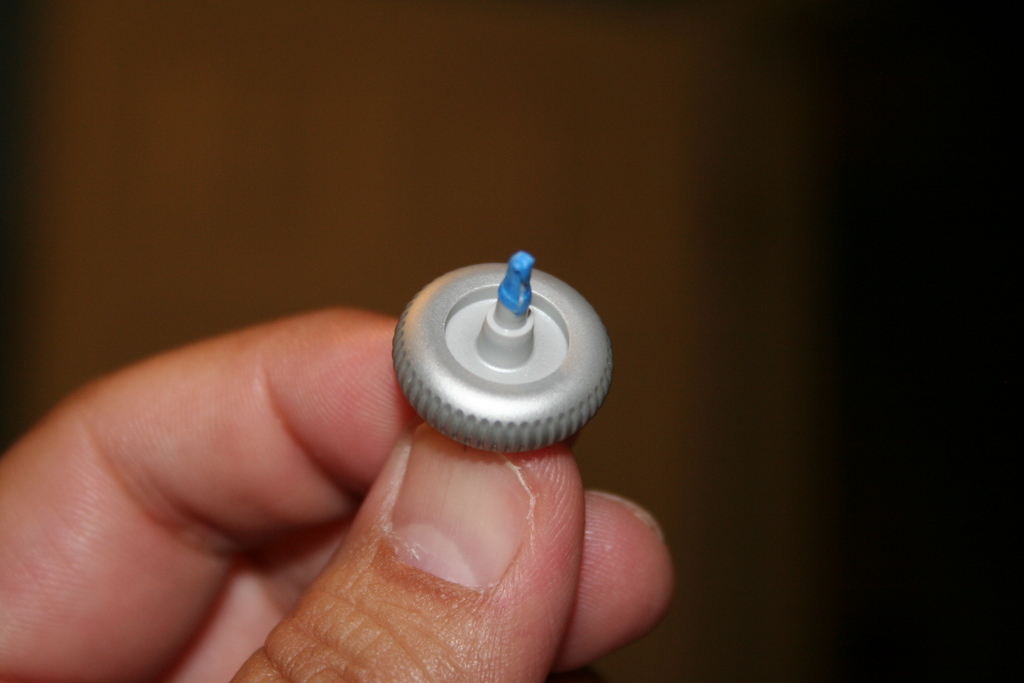
In my opinion, the problem with the mouse wheel lies in the material it is made of and the length of the hex shaped part of the shaft that fits into the mechanism that detects the wheel movement. My mouse wheel shaft was a little bit worn, but it was worn just enough and short enough to free spin and not turn the wheel mechanism.

I guess MS did not test the fact that people would be putting different pressures at different angles on this scroll wheel, hence the different failure rates with different people.

So what did I do to fix the problem?

I used some blue painter’s tape to provide a tighter fit and lengthen the end just slightly. This is a good enough fix to allow me to get more mileage out of the mouse and, as a side benefit, it gets rid of the loud plastic clicking sound the mouse made before.

To finish up … make sure the wheel spins freely, put the cover back on, put all the phillips screws back (not the hex one), replace the skid pads, add the batteries, and put the battery cover back on.

I hope this helps a lot of folks out there decide what to do with these cool yet dysfunctional mice!

Take care & be safe.

– Dom
*****

Additional Information on this post:

Matt wrote to me recently to tell me “I used superglue instead of tape, spin the tip around the part you taped and then once you have a thin but even coating around breathe (like a hot slow breath, not like blowing out candles) to help the glue set (super glue sets with water, the moisture in your breath will help speed things up). After a minute it should be dry and then just put the scroll wheel back in and its as good as new :)”. Thanks Matt.