How to use VNC & Camtasia to record presentations/demos from other laptops

Sometimes there is a need to record the content of another presenter or a group of presenters, and installing Camtasia on each and every laptop is not practical.

I’ve also seen this solved by using a “presentation” laptop, and often there are issues with the presentation & certain versions of presentation software or fonts or formatting.  I’ve done this once and at the end of the recording one presenter was confused with what was seen on the screen, did something and subsequently deleted the recording before I could get to the laptop to save it.

Another solution to this (and one of the more ideal) is through various pieces of hardware like VGA splitters and Frame Grabbers to go along with laptop and projector.  I’ll do a separate post on this later.

One of the more inexpensive solutions to recording content on a remote laptop is to use remote desktop software, in most cases I use VNC since I can connect to Windows, Mac, and Linux based laptops (it’s also free from realvnc.com, though this version does not have encryption).  My other choice when using Windows only is to use remote desktop.

All of this screen capturing is done over a wired or wireless TCP/IP network, and requires a fair amount of bandwidth on the local subnet.  If you were to do this across the internet or intranet, the latency of screen refreshes goes up which could impact the live recording and slow down the presenter.

Below is a little video I put together to summarize what I’ve done with VNC and Camtasia (PC & Mac setup/demos).  In addition I’ve included pictures of my wireless audio setup to capture the audio at the same time as the video.

The hardware pictured is of a Shure PGX wireless microphone system connected via a XLR cable to a Centrance MicPort Pro pre-amplifier which then connects USB to the laptop and appears to the system (and Camtasia) as a external microphone.

Enjoy the video!

– Dom

Direct link to video:  http://www.youtube.com/watch?v=HK2bjqgm1Cs

Record in 3’s

One of the challenges of recording any kind of content (video or audio) to be distributed on the internet or a intranet is getting a good natural sounding “take”.

I came across this nice Camtasia audio article by Lon Naylor on capturing multiple attempts of the same audio to get a really natural “take” to be mixed or added to a longer audio sequence later.  The included youtube video is a great example of this (I’ve also included this video below).  The video also shows great microphone and pop filter placement.

This makes a lot of sense, once a person reads a script and gets comfortable with the content or phrase, repeating it will sound more natural the next time (also any nuances or word emphasis would be worked out by hearing yourself).  By the 3rd attempt it should sound good.

Thanks for the article and pointer to the youtube video Lon.

Enjoy!

– Dom

Direct link to video:  http://www.youtube.com/watch?v=t926G1FFzL4

Microphone placement for interviews … the “Hat Mic”

Here is a very good microphone placement technique I learned years ago for recording audio interviews and corporate educational materials.  Some people have called this the “Hat Mic” or “Hat (Mic) Trick” technique.  I’m posting this so more people can learn this great miking technique.

It involves is clipping a lavalier/lapel microphone to the brim of a baseball cap as shown here:

Then putting on the hat mic and running the microphone cable behind a ear and to the recorder or computer mic port.

This miking technique has several advantages.  The most important ones are a constant fixed distance between the speaker’s mouth and the microphone (really helps with setting gain levels) and the microphone is out of the breath path of the person speaking (removes breathing on the mic and plosives).

Here is a MP3 audio example of the the hat mic technique in action.

Here is a direct link to the MP3 example:  http://tribalgrowth.com/files/4scoreHM.output.mp3

The WAV audio was recorded with a Olympus LS-10 and “Hat Mic”.  The MP3 audio was edited and produced using Audacity and the Levelator.

Here are the blog posts where I initially found and learned about the Hat Mic technique.

Hope this was useful. Enjoy!

– Dom

How to record and produce a MP3 file from a 2 person interview

When I record audio interviews, I usually choose between 2 hardware setups depending on the situation.

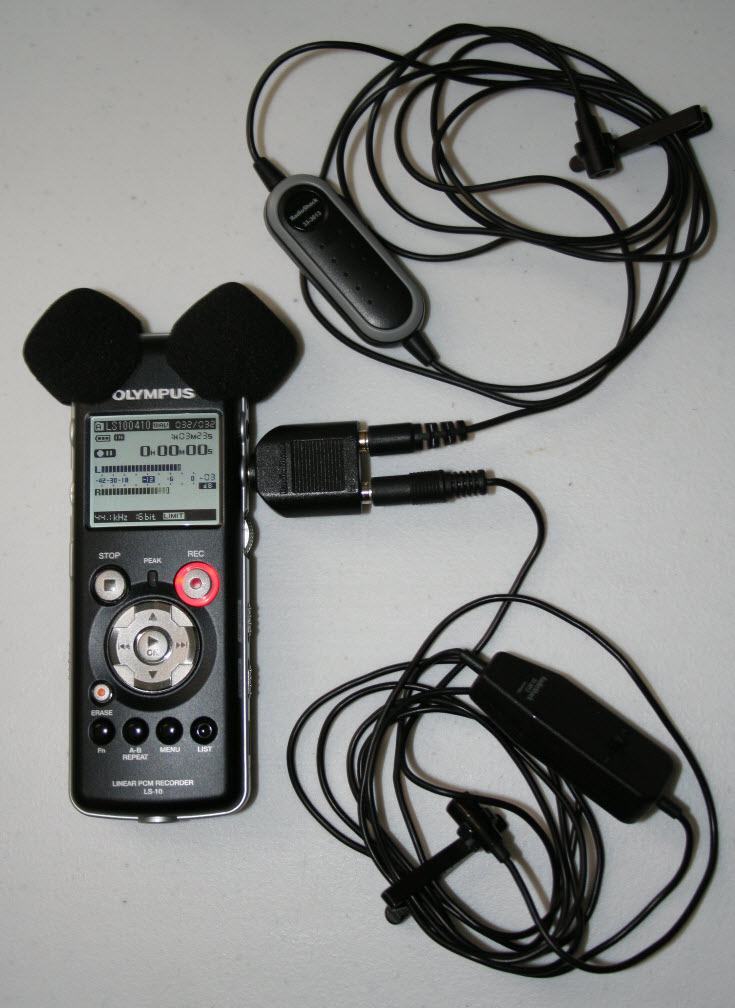
The first setup is for ultra-light portable field recording without any power nearby or audio mixer to plug into.  This comprises primarily of a Olympus LS-10 digital audio recorder, 2 lavalier/lapel wired microphones with 1/8 mono connectors, and a Y connector which connects each mono connector to the right or left stereo input on the LS-10.  Click on the image to see a larger version.

The second setup is also for field recording that gives me more options to either plug into an existing audio mixer, or use higher quality phantom powered wired or wireless microphones.  It’s made up of a Marantz PMD661 digital audio recorder and paired with a couple Shure Beta58A microphones (as pictured) or a couple Shure PGX wireless lavalier/lapel microphones (these require AC power nearby).

One of the more important points about recording interviews is microphone placement.  I prefer to use the lavalier/lapel microphones when I can because it allows me to place the microphone at a consistent distance from the mouth of the person talking and there is little chance for handling noise.  With hand-held microphones, moving of the hand on the surface of the mic can cause audio noise to be picked up by the recorder.

One tip on using the devices, the Olympus LS-10 can be setup to use Auto-Gain or Fixed-Gain, the gain applies to BOTH left and right channels at the same time, there is no individual gain for each channel.  On the Marantz PMD661, each channel has it’s own gain and can be adjusted independently depending on the person’s speaking volume.

Once I am done with the recording, I take the WAV file from either recorder, run the file through the Levelator, and edit them using Audacity (remove parts I don’t want).  Once all the editing it done, the audio is then rendered (or produced) into MP3 format.

Below is a video I made of the production process using Audacity & the Levelator (the audio used was recorded using the Olympus LS-10 setup):

Enjoy!

– Dom

Here is the video link for those who can’t see the embedded viewer:  http://www.youtube.com/watch?v=pxR2Jik8oHM

Here is the MP3 file so you can hear it outside youtube:

Here is the direct link to the MP3 file:  http://tribalgrowth.com/files/DomJo.output.mp3

The video was made and rendered in 720p using Tech Smith’s Camtasia Studio 7.

Dominic’s iPhone 4 Review

I was teaching in San Ramon, CA when my new iPhone 4 arrived at the house last week.  My wife and I have had some of the original iPhones for several years and liked them (we also protected our phones using the iSkin revo).  We decided to continue with the new iPhones due to being grandfathered into the unlimited data plan, and I can use the phone when I travel internationally (because it uses a GSM radio versus CDMA).

I activated our phones after getting back on Friday (7/2) and started using our iPhone 4s.

I can say these phones are beautiful and no picture I can take will do any justice to the ones on the Apple website here.  My brother Pat, who is an expert working with stainless steel was impressed with the new industrial design.

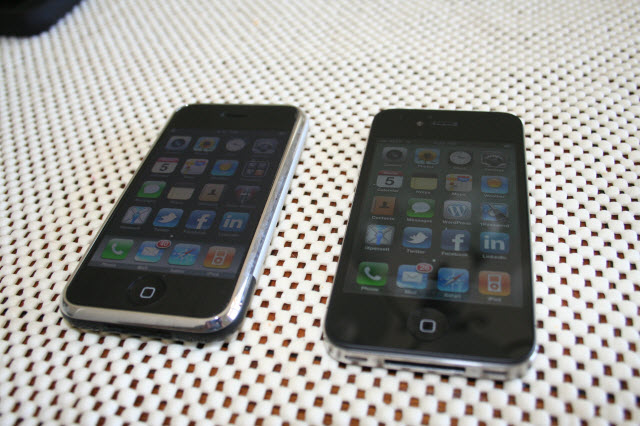
I was disappointed to find the lack of cases available for the new iPhone 4, it’s one of the first things I put on any mobile device that I will own for any number of years.  I did hear about the “bumper” through Apple, but I don’t like the lack of protection at the front and back of the phone (2 pieces of glass to worry about now).  I’m going to wait for the new iSkin case for the iPhone 4.  I really like this case because of the removable plastic display cover to protect the multi-touch screen.  Since one is not available, I’m using the original iSkin revo case on our new iPhones, they work quite nice.  Here are some pics (original iPhone on left, iPhone 4 on right):

I’m not too concerned about the antenna issue that seems to be swirling around the new iPhone (maybe because I have a bit of background in the electrical engineering area 😉 ), but the exposed antenna on the edge of the device did surprise me (things like this are usually insulated), glad the iPhone will be in a case.  It’s funny, the “bars” on the phones are from the analog days of mobile phones, with the new digital phones, either there is a signal or not, pretty simple, more bars don’t mean better call quality.  Most of the newer phones have internal antennas and can experience the same effects when a hand or body gets in the middle of the phone and the tower it needs to talk to (also because of the cellular technology one can be switching between towers at any time).  This also reminded me that not too long ago we had antennas on the outside of our mobile phones, I still have one lying around:

Of course, the new iPhones are quicker, many of the tasks I performed on the older iPhone are so much faster now.  But then again, when you let almost 3 years pass before updating hardware, it will be faster since hardware technology changes so fast today.

Here is some test video from the iPhone, the video was shot, trimmed, and uploaded all from the phone.  Even though the iPhone records in 720p HD, the process (without iMovie) compresses the video BEFORE uploading to youtube, hence there is no HD on the sample video here.  I guess that can be expected when uploading using the 3G connection, AT&T does not want all kinds of HD video clogging up it’s already stressed network.  Will try iMovie for the iPhone sometime soon and see what happens.

Here is the same video, I used iPhoto on the Mac to “copy” off the .MOV file then uploaded this version to youtube.  As you can see this video has the HD option and is a bit clearer when you switch to the 720p setting.  The raw .MOV file details are:  1280×720 res, 24fps,  AAC mono 44.1kHz, 10.4 mbits/sec.

BTW, the iPhone was held in the tripod using the ProPrompter Wing hardware.

Overall, the HD video will be nice for on the fly video recording, replacing the Flip HD we have.  Moving up to GPS is a plus, and it looks like we are going to enjoy our new iPhones once we have cases that fit well.

– Dom